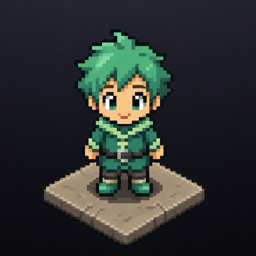

Small characters that live on your desktop.
Add a companion to your desktop, and it works alongside you. It can open a conversation bubble, carry out tasks with Claude, Codex, or a plain shell, and let you know when it's done.
“It is part toy, part operator console: cute characters on top, real work underneath.”
A project built by the Pixel City team.
What it does
Part toy, part operator console.
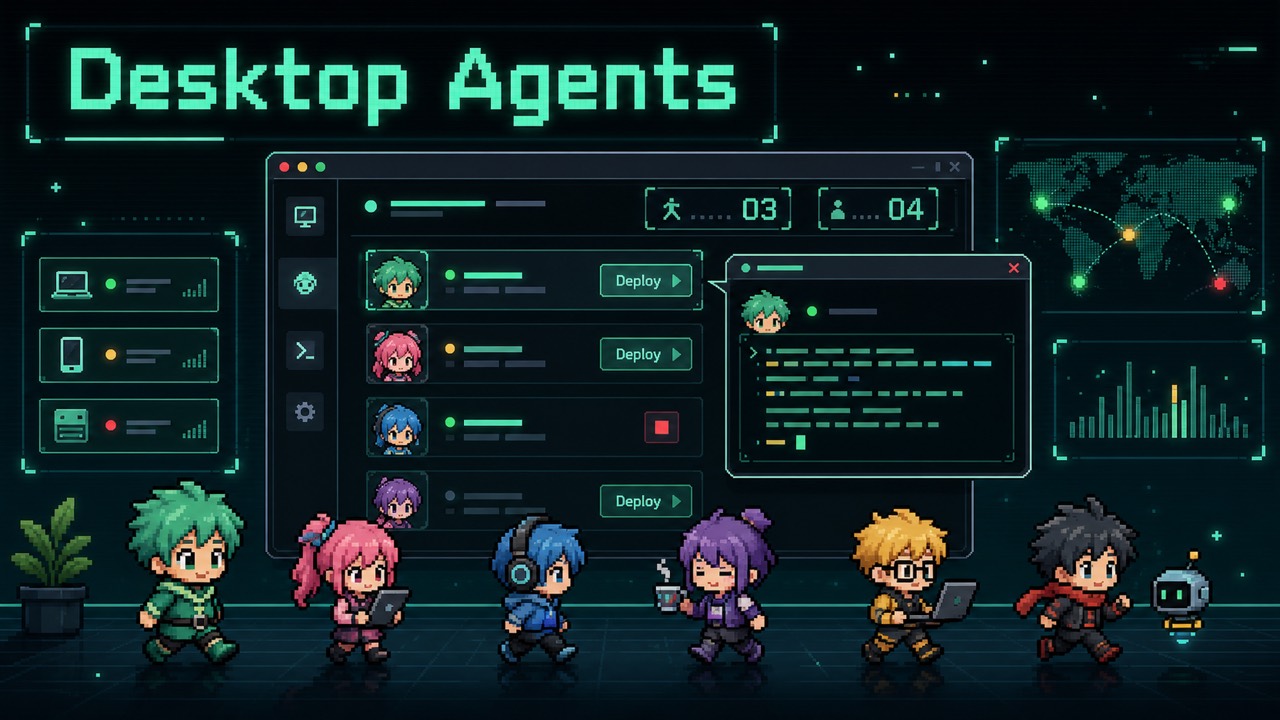
Desktop Agents lets small characters live on your desktop as working companions.
-
Desktop companions
Small characters that walk around your desktop, with their own idle, walking and working animations.
-
Real work underneath
Click a companion to open its conversation bubble and run a session with Claude, Codex, or a plain shell, in a project folder you choose.
-
One place to manage them
See every companion, start or stop them, and adjust each one's settings from a single control window.
-
Check in from elsewhere
Reach your companions from your phone or another computer, through a private link you turn on and protect with your own access code.
Small interfaces, real purpose
A little space for what matters.
Ask your agent to create a widget: a stock-market dashboard, a reminder list, or a quiet focus card. A small desktop interface built around what you need.
How it works
Four steps to a working companion.
Setting one up takes a minute, and it starts walking right away.
- What it runs — Claude, Codex, or a plain shell
- Which model it uses
- Which project folder it works in
- How big it appears on your screen
-
01
Add a companion
Give it a name and pick how it looks.
-
02
Set it up
Choose what it runs and point it at the project folder you want it working in.
-
03
Send it to your desktop
It's saved, and it starts walking right away.
-
04
Open its bubble anytime
Click the character to see what it's doing, or give it something new to do.
Check in from elsewhere
Your companions aren't stuck on one screen.
Turn on a private link from the app and protect it with your own access code. After that, your phone or another computer on your network can reach the same companions.
- Open a companion's conversation bubble from another device
- Check what a companion is doing with a simple screen view
- Hear a companion's spoken updates
- A simple companion app for Android, for quick access on the go
Good to know
Before you bring one onto your desktop.
-
Your project stays put
Each companion works in a project folder on your own computer.
-
You're in control
You choose what each companion runs, and where it works.
-
Access is protected
Checking in from another device needs an access code you set yourself, first.
Curious about Desktop Agents?
Want to bring these companions to your desktop? Get in touch with the Pixel City team.
Get in touchhello@pixelcity.world